
VBASH Tutorial
Demo Document:
Installation
- VBASH works on Windows only.
- Shortly after placing your order, you will receive an "Order Confirmation" email.
- Download VBASH installer using the link in the "Order Confirmation" email.
- Unzip with 7zip (download for free) to get the executable, then run it and follow the instruction.
- Activate VBASH online, you are good to go.
Activation
- Within 5 minutes after completing your order, you will receive an "Order Confirmation" email which contains all necessary information to activate VBASH. Please check your spam folder or contact us if you do not see the email.
License Server: 66.55.68.25 Port: 23400
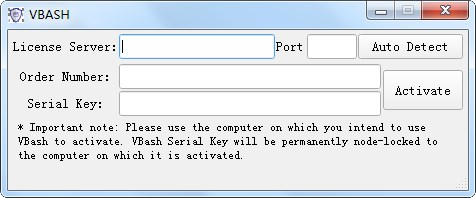
- After installation and upon the first launch of VBASH, you will be prompted the activation window. Verify the "License Server" IP address and "Port" are set as shown (for Version 1.1.1 and after, you can click the "Auto Detect" button which will detect and automatically fill these), fill in the "Order Number" and "Serial Key" you received by email, and then click "Activate". It may take up to 2 minutes for the activation to complete.
- VBASH is ready to roll once activated.
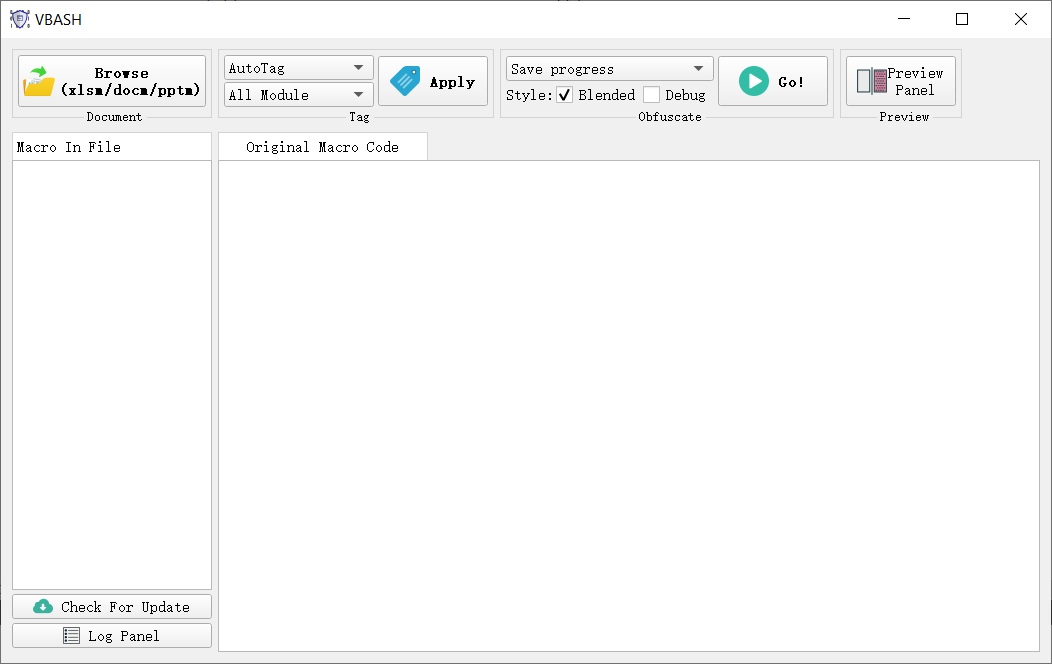
VBASH Basic
This is how VBASH works:
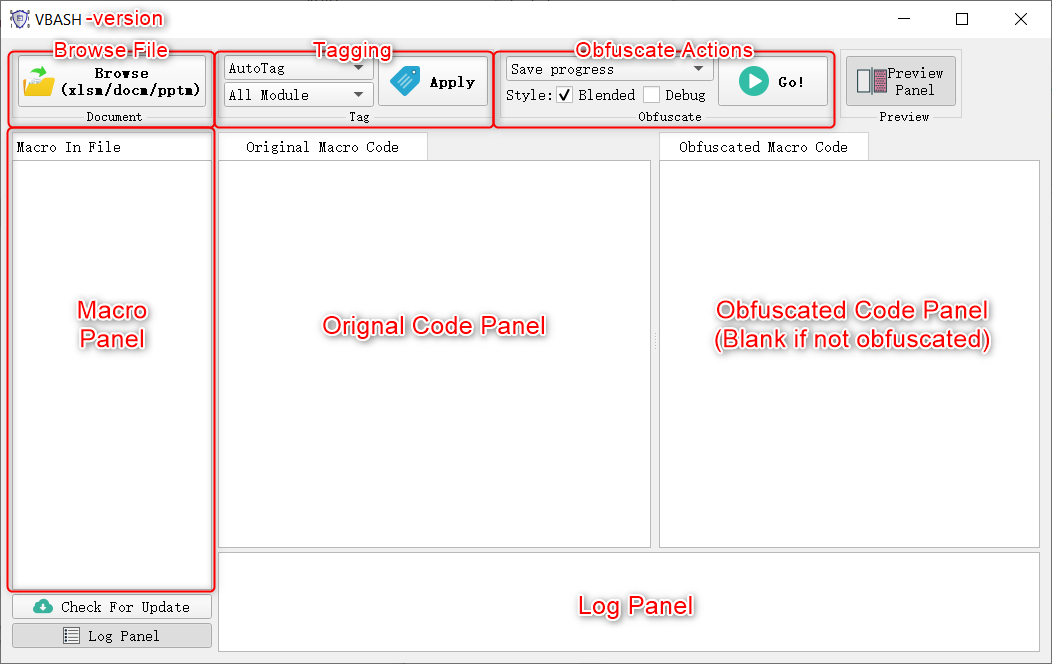
- Load target VBA document using "Browse Document" button. VBASH supports .xlsm, .docm and .pptm file types. Macro in document will be listed in the "document panel".
- Use "Auto Tag" or manually setup Tags. You may skip this step if you don't want obfuscation.
- Select an action from the menu and click "Go!"
- Review the processed VBA document under the same directory of the original document.
More detail:
Actions
There are 5 actions you can take with VBASH:

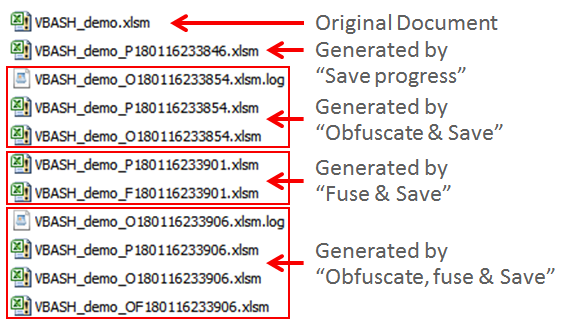
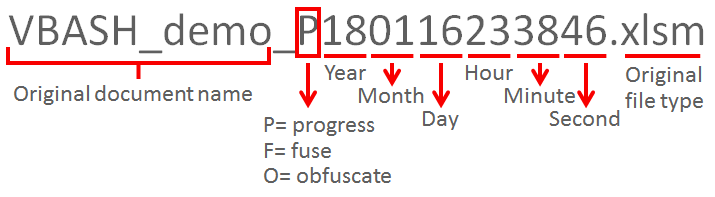
- Save progress: Save a copy of the original document in which all Macro are updated to the Macro in "Original Code Panel". This is to save progress so you may continue your work at a later time. This document is NOT fused nor obfuscated and it should not be distributed to end user. If you are satisfied with the obfuscation result, we recommend you continue the project development using the progress file where all the tags are preserved as VBA comment.
- Obfuscate for preview: Run obfuscation but doesn't save anything. The obfuscated code will appear in the "Obfuscated Code Panel". You can run this to test out the obfuscation without generating too many documents.
- Obfuscate & save: Run obfuscation and save a copy of the original document in which all Macro are updated to the Macro in "Obfuscated Code Panel". It will save a progress and a obfuscation log by default.
- Fuse & save: Save a progress and a copy of the progress with the VBA project fused. Although you can not see the Macro in the fused VBA document, it is exactly the same as in the progress document.
- Obfuscate, fuse & save: Save a progress, an obfuscated document and a obfuscation log, and an obfuscated document with VBA project fused. Although you can not see the Macro in the fused VBA document, it is exactly the same as in the obfuscated document.
There are 2 additional obfuscation styles you can choose:
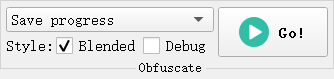
- Regular (Obseleted): This is the default style. With this style each macro is assigned a unique indentification charactor and all sub/function/type/variable originally defined in such macro will start with the indentification charactor.
- Blended: With this style all sub/function/type/variable in the project will start with letter "l", concealing the origination of any obfuscated name.
- Debug: Debugging a ofbuscated project is very challanging, debug style is aim to help that. With this style, instead of replacing the original name, the obfuscated name is appended to the original name. This allows developer to see what has been obfuscated for debug purpose. This is not for production because the original name is still in the macro code.
Tagging
Tags are required for VBASH's obfuscation to work correctly. The easiest way is to setup Tags is using the built-in Tagging functions:
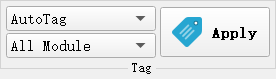
- AutoTag: Screen Macro code and setup Tags for Global Variables ("'#DimGlobalVariable#"), Functions and Subroutine ("'#DimFunctionSub#"), and Local Variables ("'#DimLocalVariable#"). VBA event subroutine will be automatically skipped ("'#DimSkipFunctionSub#"). It does not affect other kind of Tags.
- CleanTag: Consolidate repeating Tags and reorganize the Tags format. This helps you organize Tags after customization to make them easier to read.
- ClearTag: Remove all Tags.
**These Tagging functions can be applied to all modules in the project or to just the selected module.
Besides the built-in Tagging functions, you can customize Tags by right click at the desire position on the "Original Code Panel" and select "InertTag". You may even manually type in a Tag. Here are Tags VBASH recognizes:
**In Tags where parameters are accepted, you can put multiple paramters as long as they are separated by comma ",".
'#DimGlobalVar# Name1, Name2
Define Global Variables. The parameters, for example Name1 and Name2, are considered global variables and they will be replaced by a unique coded name to conceal the naming intention.
'#DimSkipGlobalVar# Name1, Name2
Define Global Variables that VBASH should ignore. The parameters, for example Name1 and Name2, are considered global variables but obfuscation for them will be skipped, regardless if they are defined in a "'#DimGlobalVar#" Tag or not. This Tag is designed to avoiding obfuscating some particular global variables for whatever reason without needing to alter the "'#DimGlobalVar#" Tag.
'#DimSubFunction# Name1, Name2
Define Functions and Subroutines. The parameters, for example Name1 and Name2, are considered functions or subroutines and they will be replaced by a unique coded name to conceal the naming intention.
'#DimSkipSubFunction# Name1, Name2
Define Functions and Subroutines that VBASH should ignore. The parameters, for example Name1 and Name2, are considered functions or subroutines but obfuscation for them will be skipped, regardless if they are defined in a "'#DimSubFunction#" Tag or not. This Tag is designed to avoiding obfuscating some particular functions or subroutines for whatever reason without needing to alter the "'#DimSubFunction#" Tag.
'#DimType# Name1, Name2
Define Types. The parameters, for example Name1 and Name2, are considered as Type and they will be replaced by a unique coded name to conceal the naming intention. This only affects the name of the Type, and the obfuscations of type variables are defined by "'#DimLocalVar#" tag before the Type definition.
'#DimSkipType# Name1, Name2
Define Types that VBASH should ignore. The parameters, for example Name1 and Name2, are considered Type but obfuscation for them will be skipped, regardless if they are defined in a "'#DimType#" Tag or not. This Tag is designed to avoid obfuscating some particular types for whatever reason without needing to alter the "'#DimType#" Tag.
'#DimLocalVar# Name1, Name2
Define Local Variables for next Function or Subrotine. The parameters, for example Name1 and Name2, are considered local variables and they will be replaced by a unique coded name to conceal the naming intention. The local variable definition is locked by the declaration of Function or Subroutine and is cleared by the "End Function" or "End Sub", therefore in general you want to put "'#DimLocalVar#" Tag before each function or subroutine where you want local variable obfuscated.
'#DimSkipLocalVar# Name1, Name2
Define Local Variables that VBASH should ignore. The parameters, for example Name1 and Name2, are considered local variables used in function or subroutine but obfuscation for them will be skipped, regardless if they are still defined in a "'#DimLocalVar#" Tag. This Tag is designed to avoiding obfuscating some particular local variables for whatever reason without needing to alter the "'#DimLocalVar#" Tag.
'#StartObfuscation#
Set VBASH to start obfuscating string, comment and format. It is equivalent to setting "'#StartObfuscateString#", "'#StartObfuscateComment#", "'#StartObfuscateFormat#". This Tag is deemed as set at the beginning of each Macro.
'#StopObfuscation#
Set VBASH to stop obfuscating string, comment and format. It is equivalent to setting "'#StopObfuscateString#", "'#StopObfuscateComment#", "'#StopObfuscateFormat#".
'#StartObfuscateString#
Set VBASH to start obfuscating string (text between double-quotes). This is mainly for restarting string obfuscation after "'#StopObfuscateString#" or '#StopObfuscation#" Tags.
'#SkipObfuscateString#
Set VBASH to skip obfuscating string in the code line right after this Tag. This affects only one line after the Tag.
'#StopObfuscateString#
Set VBASH to stop obfuscating string (between double-quotes).
'#StartObfuscateComment#
Set VBASH to remove comment. This is mainly for restarting comment removal after "'#StopObfuscateComment#" or '#StopObfuscation#" Tags.
'#SkipObfuscateComment#
Set VBASH to skip removing comment in the code line right after this Tag. This affects only one line after the Tag.
'#StopObfuscateComment#
Set VBASH to stop removing comment.
'#StartObfuscateFormat#
Set VBASH to remove coding format (indent and blank lines). This is mainly for restarting format removal after "'#StopObfuscateFormat#" or '#StopObfuscation#" Tags.
'#SkipObfuscateFormat#
Set VBASH to skip removing coding format (indent and blank lines). This affects only one line after the Tag.
'#StopObfuscateFormat#
Set VBASH to stop removing coding format (indent and blank lines).
'#StartObfuscateLocalVar#
Set VBASH to start obfuscating local variables. This will only affect next functions or subroutines. This is mainly for restarting local variable obfuscation after "'#StopObfuscateLocalVar#" Tag.
'#StopObfuscateLocalVar#
Set VBASH to stop obfuscating local variable. This is equivalent to removing all subsequent '#DimLocalVariable#'. This is mainly for stopping local variable obfuscation for debug purpose without needing to alter the "'#DimLocalVariable#" and "'#DimSkipLocalVariable#" Tags.
'#StringAsName# Name1, Name2 (updated in v1.1.9)
Set VBASH to consider string between quotes as function or subroutine name. If the entire string between quotes matches to one of the name specified, Name1, Name2 and etc, VBASH will obfuscate the string as if it is a sub/function/variable name. For example, with "'#StringAsName# MyFunc"in this statement "Application.OnKey "{ENTER}", "MyFunc"", "MyFunc" will be replaced by its obfuscated name instead of being obfucated as a string. This applies only the next line after the Tag.
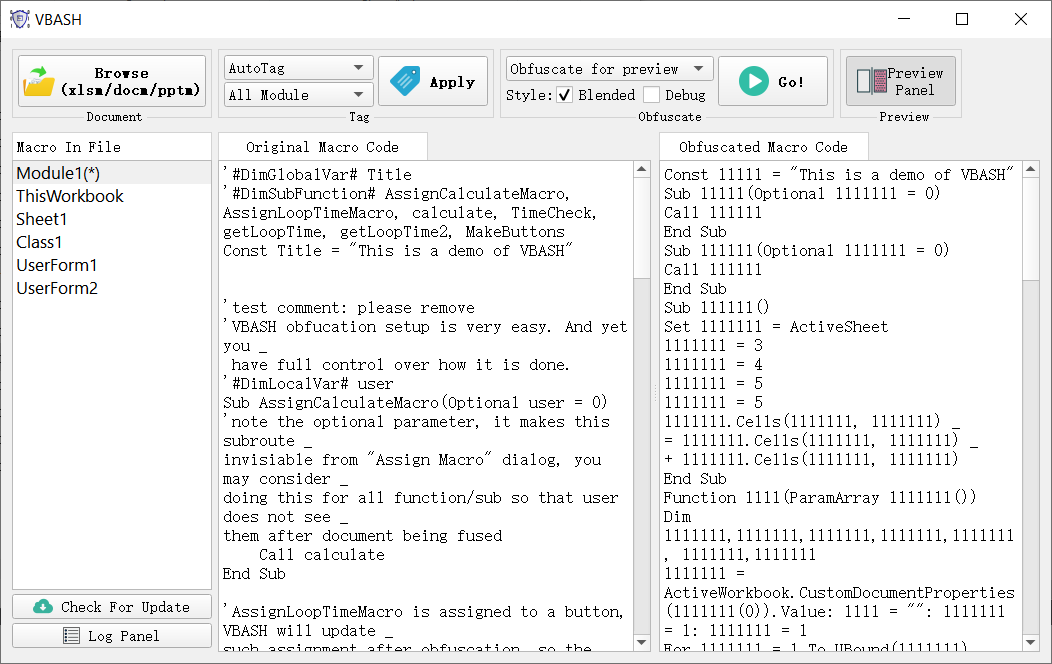
Tagging example and the obfuscation result can be found in the demo document:
Console Mode
(v1.1.15 and newer)
In response to an overwhelmed request, VBASH console mode is added. Now you can run selected VBASH tasks by calling VBASH.exe in cmd. The following arguments are supported:
-i|--input <InputFilePath> Required to incur console mode. <InputFilePath>=Input file path (use "" if path includes whitespace).
-a|--action <action> Required to incur console mode. <action> must be one of these phrases: obfuscate, fuse, obfuscate+fuse. Case insensitive.
-t|--tag Apply autoTag (elimiate this argument to skip autoTag).
*It is recommanded to run "Start /w VBASH.exe <arguments>" instead of "VBASH.exe <arguments>", so that the cmd will not return until VBASH task is completed.
Example command: "Start /w VBASH.exe -i "C:\my path\my.xlsm" -t -a obfuscate+fuse"
Frequently Asked Questions:
- Why VBASH fails to open some document and shows a warning message saying "Programmatic access to Visual Basic Project is not trusted"?
- Some obfuscator uses random strings for variable names and etc. Why VBASH does not?
- In demo document, why adding a unused optional parameter to some Subroutines?
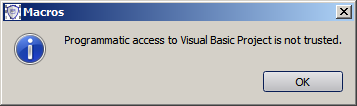
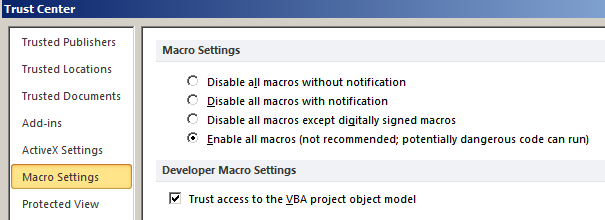
Answer: VBASH requires access to VBA project to extract Macro. To resolve this, in Excel/Word/PowerPoint go to "File"->"options"->"Trust Center"->"Trust Center Settings"->"Macro Settings" and check the option "Trust access to the VBA project object model" under "Developer Macro Settings".
Answer: Random string made out of letters and numbers may seem unreadable to human, but each unique random string is unique and it is easy to be searched and replaced by simpler phrases, defeating the purpose of obfuscation. VBASH chooses to use a random pattern consist with "1" and "l" as the obfuscated name, for example "l1l1l11ll", because it is hard to read and it is not easy to be searched and replaced. However, we are considering enabling more patterns of obfuscated names, feel free to send us your idea through Contact Us and we are more than happy to take it into consideration.
Answer: As you may already know, subroutine without parameter will appear in the Macros list (on Ribbon under "Developer" tab, "Macros" command). This is also the case for a fused document. To avoid your subroutine being listed, simply add a unused optional parameter for the subroutines.
Revision History:
